
In today's digital age, photo editing is essential for sharing images. Online image editors offer simplicity without sacrificing quality.
This article explores essential photo editing tools and techniques using online editors, making it easy for beginners and efficiency seekers to enhance their pictures.
Why Use Online Image Editors?
Online image editors are a convenient solution for photo enthusiasts and professionals alike. Here are some compelling reasons why you should consider using them:
- Accessibility: Online image editors are accessible anywhere with an internet connection, eliminating bulky software installs.
- User-Friendly Interface: They feature beginner-friendly interfaces.
- Cost-Efficiency: Many offer free basic versions, saving you money.
- Platform Flexibility: Work on various devices, from computers to smartphones.
- Instant Updates: Get regular updates for the latest features.
- Collaboration: Collaborative editing is possible, even remotely.
- Storage and Sharing: Cloud storage and easy sharing simplify file management.
- No Storage Overhead: They don't hog device storage.
- Time-saving: Access essential tools for quick edits.
- Community and Support: Active communities and forums assist.
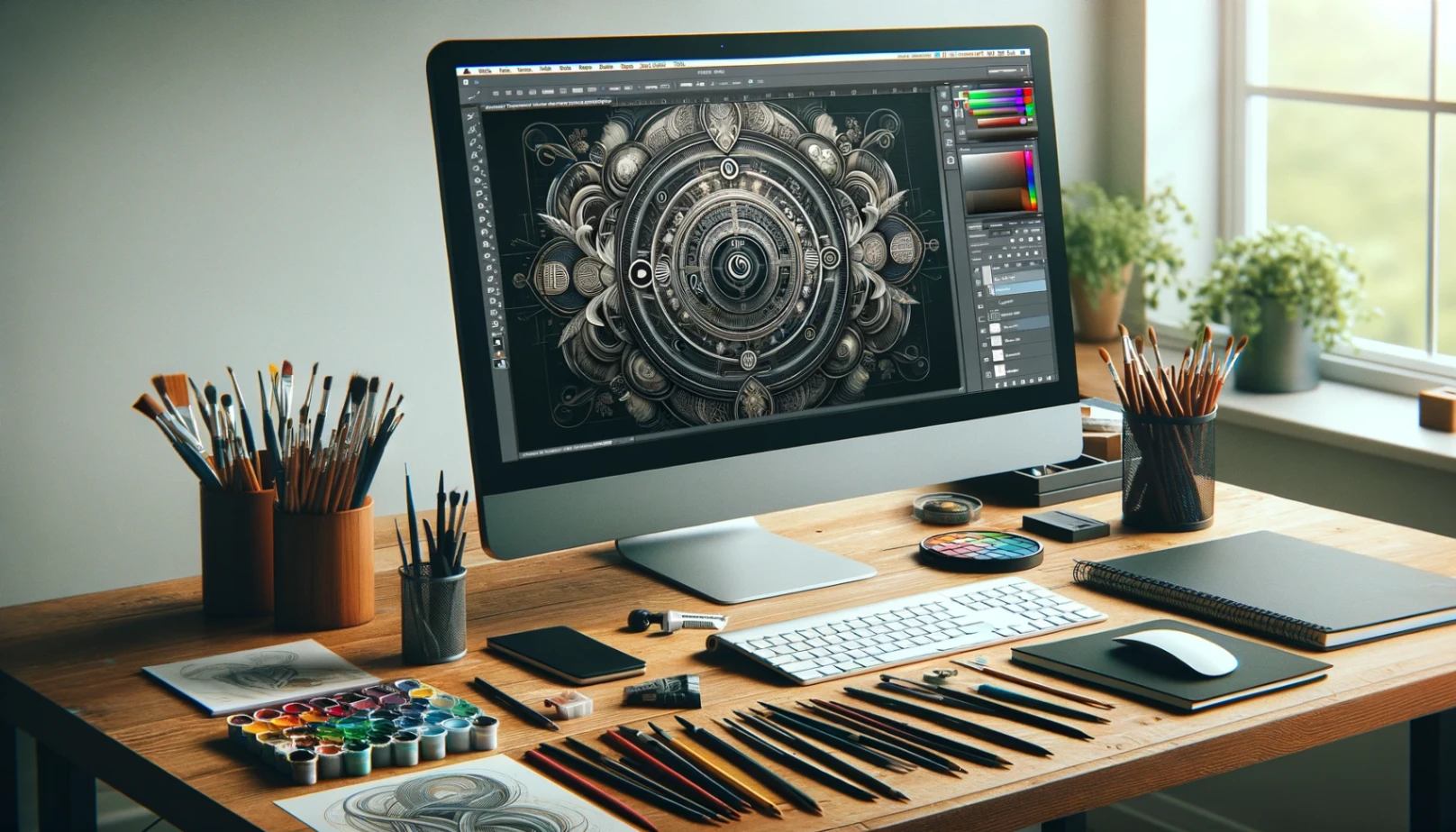
Getting Started
Accessing an online image editor is a straightforward process that allows you to start editing your photos without the hassle of installing software. Here are the steps to get started:
- Open Your Web Browser: Launch your preferred browser on your device.
- Search for an Editor: Type relevant keywords or editor names in the search bar.
- Choose a Reliable Editor: Select one from the search results.
- Access the Website: Click on the editor's link to visit their homepage.
- Sign In (Optional): Register or sign in if required.
- Upload Your Image: Look for the upload option, which is often on the homepage.
- Start Editing: Utilize the editor's tools for image adjustments and enhancements.
Basic Editing Tools
Online image editors provide versatile tools for easy image enhancement. Below, find essential tools with step-by-step instructions.
Crop Tool:
- Click on the "Crop" tool.
- Drag to select the area you want to keep.
- Hit "Apply" or "Crop" to finalize.
Resize Tool:
- Locate the "Resize" or "Image Size" option.
- Enter the desired dimensions (width and height).
- Confirm the changes by clicking "Apply" or "Resize."
Brightness and Contrast Adjustment:
- Look for "Brightness" and "Contrast" sliders.
- Adjust the sliders to increase or decrease brightness and contrast.
- Click "Apply" to confirm the changes.
Color Correction:
- Find "Color" or "Hue/Saturation" options.
- Adjust the sliders to modify color intensity.
- Click "Apply" to save your adjustments.
Sharpness Tool:
- Locate "Sharpness" or "Sharpen" in the editing menu.
- Increase the sharpness level as desired.
- Confirm changes with an "Apply" or "OK" button.
Blur Tool:
- Search for "Blur" or "Blur Effect."
- Adjust the blur strength using sliders.
- Click "Apply" or "OK" to apply the blur effect.
Rotation Tool:
- Find "Rotate" or "Rotate Image."
- Select the rotation angle (e.g., 90 degrees).
- Click "Apply" to rotate the image.
Red-Eye Removal:
- Look for a "Red-Eye Removal" tool.
- Click on the red eyes in the photo.
- Confirm the changes to remove red-eye.
Clone Stamp/Healing Brush:
- Locate the "Clone" or "Healing" tool.
- Click on an area to clone from (source).
- Brush over the area you want to fix (target).
Text Tool:
- Find "Text" or "Add Text."
- Click on the image to add a text box.
- Type your text and customize font, size, and color.
- Position the text and confirm with "Apply" or "OK."
Filters and Effects
Filters and effects are powerful tools in photo editing, offering creative possibilities to transform your images. Here, we'll delve into the realm of filters and effects, highlighting popular options and their applications:
Black and White Filter:
- Apply the "Black and White" effect.
- Adjust intensity as desired.
Vintage Effect:
- Use the "Vintage" or "Retro" filter.
- Achieve an aged, nostalgic look.
Sepia Tone:
- Apply the "Sepia" filter.
- Infuse warmth with sepia tones.
Vibrance/Saturation:
- Modify color intensity.
- Enhance or reduce vibrancy.
Gaussian Blur:
- Create a subtle blur.
- Ideal for soft, dreamy effects.
HDR (High Dynamic Range):
- Combine multiple exposures.
- Achieve balanced, stunning photos.
Film Grain Effect:
- Add film-like grain.
- Recreate classic film aesthetics.
Oil Painting Filter:
- Transform photos into art.
- Achieve a painterly look.
Lens Flare:
- Incorporate lens flares.
- Add drama or whimsy.
Bokeh Effect:
- Blur with light points.
- Create a beautiful background effect.
These filters and effects open up a world of creativity in photo editing, allowing you to craft images with unique styles and atmospheres.
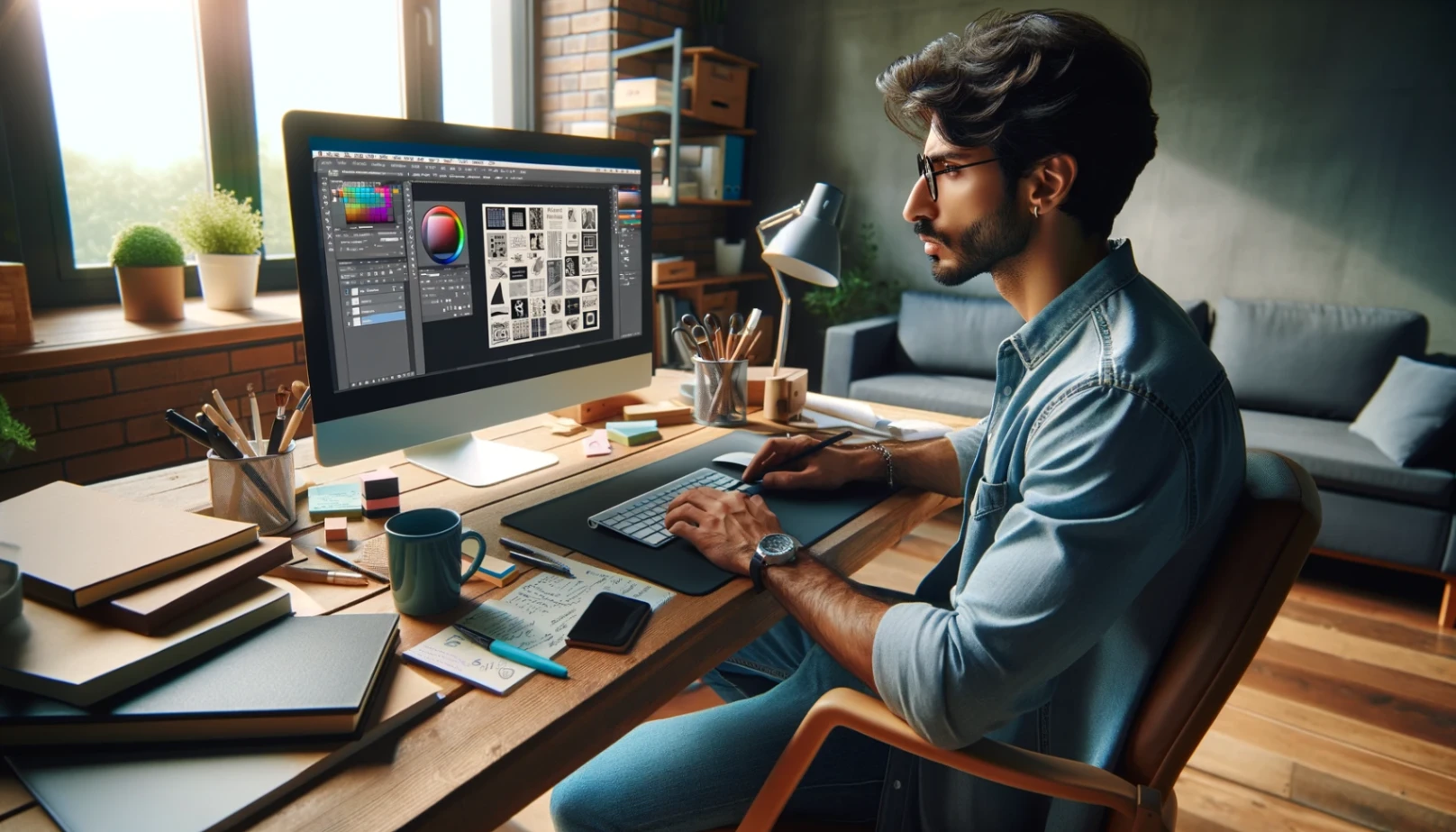
Layers and Text
Layers and text are fundamental elements in image editing that allow you to add depth and context to your visuals. Let's explore how to use layers and incorporate text into your images effectively:
Layers:
- Understanding Layers: Layers are like stacked transparent sheets in image editing, allowing separate element management.
- Adding a New Layer: Find "New Layer" or "Add Layer" and name it if needed.
- Layer Ordering: Change layer order by dragging. The top layers appear in front.
- Layer Styles: Explore drop shadows, gradients, etc., in layer properties.
- Layer Masks: Hide/reveal parts with masks. Paint to modify areas.
Text:
- Adding Text: Use the "Text" tool to create a text box on your image.
- Customizing Text: Modify fonts, sizes, colors, and alignment.
- Text Placement: Position the text box where you want text to appear.
- Text Effects: Enhance text with effects like outlines or shadows.
- Editing Text: Select the text layer, click the text box, make changes, and confirm.
Tips on Choosing Fonts and Text Placement:
- Prioritize Legibility: Choose easy-to-read fonts, especially for small or distant text.
- Embrace Consistency: Use a few fonts consistently for a unified look.
- Establish Hierarchy: Vary font size, style, and color to emphasize essential information.
- Contextual Readability: Adjust font size and placement based on the design context.
- Balance and Align: Align text with design elements and use justified alignment for clarity.
Saving and Exporting
In image editing, saving and exporting are pivotal to ensuring your edited creations are preserved in the correct format and quality for their intended use.
- Choose the Format: Pick the correct file format (JPEG, PNG, TIFF) for your image.
- Quality Control: Adjust quality or compression levels as needed (JPEG).
- Select a Location: Save your image to your chosen storage with a clear file name.
- Metadata Consideration: Decide whether to include or exclude metadata.
- Check Resolution: Ensure the image resolution suits its purpose.
- Multiple Exports: Export variations for different platforms or uses if necessary.
- Preview and Review: Verify color, sharpness, and details.
- Backup Original: Always keep a backup of your original image.
Advanced Features
In image editing, advanced features are the tools and techniques that elevate your capabilities, allowing for intricate and professional-level editing.
- Layer Blending Modes: Experiment with blending modes for complex visual effects.
- Selection Tools: Master advanced selection tools for precision.
- Masking and Compositing: Seamlessly blend elements from multiple images.
- Curves and Levels Adjustment: Fine-tune image tones and colors professionally.
- Filter Galleries: Apply intricate effects like texture overlays and distortions.
The Bottomline
Mastering online image editors is essential in modern photography, offering accessibility, cost-efficiency, and user-friendliness. These tools simplify editing, enabling users to transform photos creatively.
Embrace these Photoshop essentials for captivating visual results in your photography journey.